How to sign in with Apple
Signing in lets you send your music to another person. RiffBack uses your Apple Account, so you do not need to create a separate RiffBack password. Apple Account is the new name for Apple ID.
Before you begin, connect your iPhone to Wi-Fi or mobile data and make sure you are signed in to your Apple Account in the iPhone’s Settings app. These pictures are examples. Your name and initials will be different.
If you see “Sign in to continue”
You may see this message if you try to send music before signing in. Tap Sign in, the button on the right. Then follow the steps below. Your recorded music is still there, as the message explains.
If you already see Continue with Apple, start at step 1.

Tap “Continue with Apple”
On the RiffBack sign-in screen, tap the black Continue with Apple button below the RiffBack name.

The RiffBack sign-in screen. Tap or click the picture to make it larger. Follow Apple’s instructions
An Apple sign-in panel opens. If this is your first time, Apple may ask you to check your name and choose whether to share your email address. Hide My Email keeps your personal address private and forwards email to you. Either choice can be used to sign in.
Tap Continue if asked. Follow the instructions on your phone to confirm it is you. Face ID checks your face; Touch ID checks your fingerprint. Your phone may offer a passcode option.
When you see Signing in…, wait for the panel to close. You do not need to tap the button again.
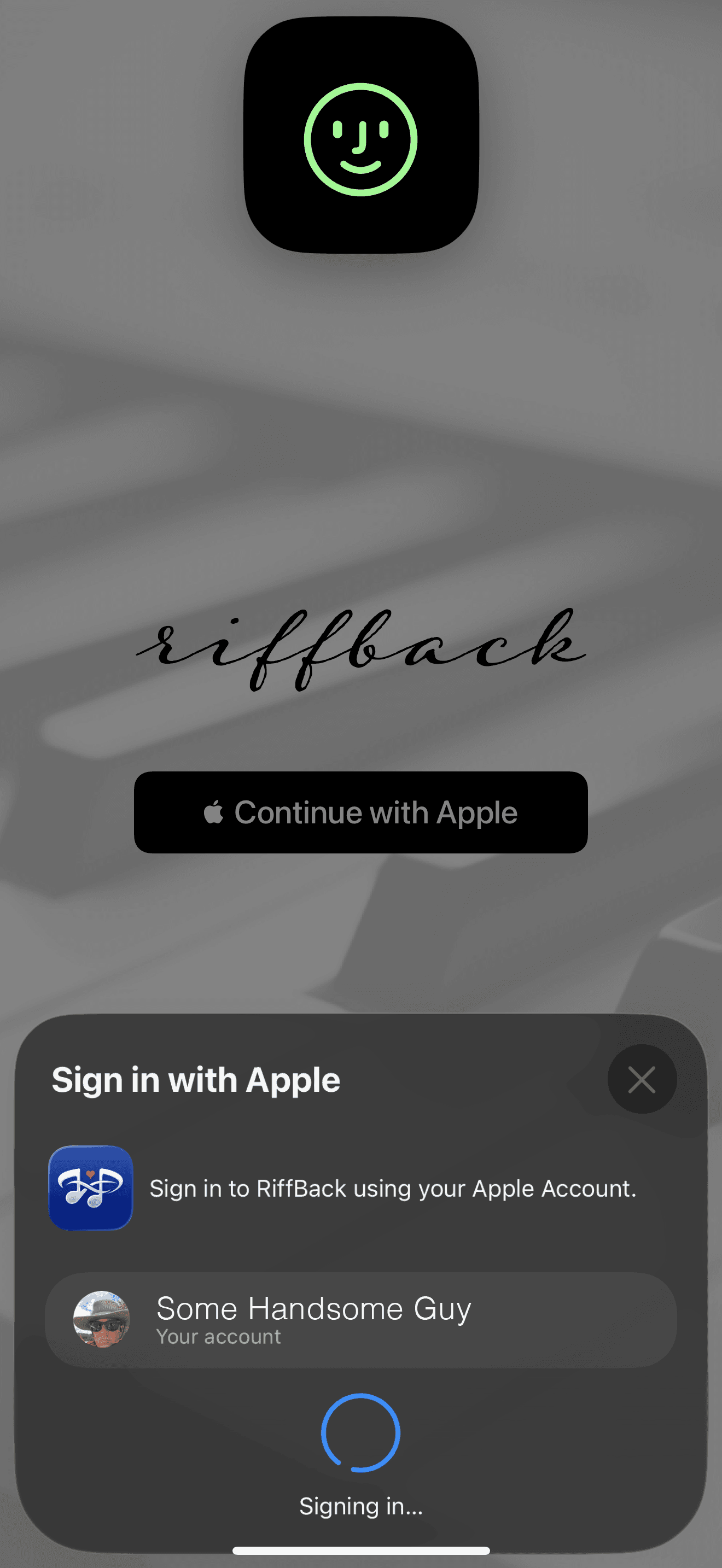
Apple confirming the sign-in. The account shown is an example. Tap or click the picture to make it larger. Return to your music
After sign-in finishes, RiffBack returns you to the app. This example shows the home screen with Your Turn, Invited, and an account circle in the upper-right corner.
If you were trying to send a musical phrase, return to it and try sending it again. To invite someone, tap Invite a Friend.
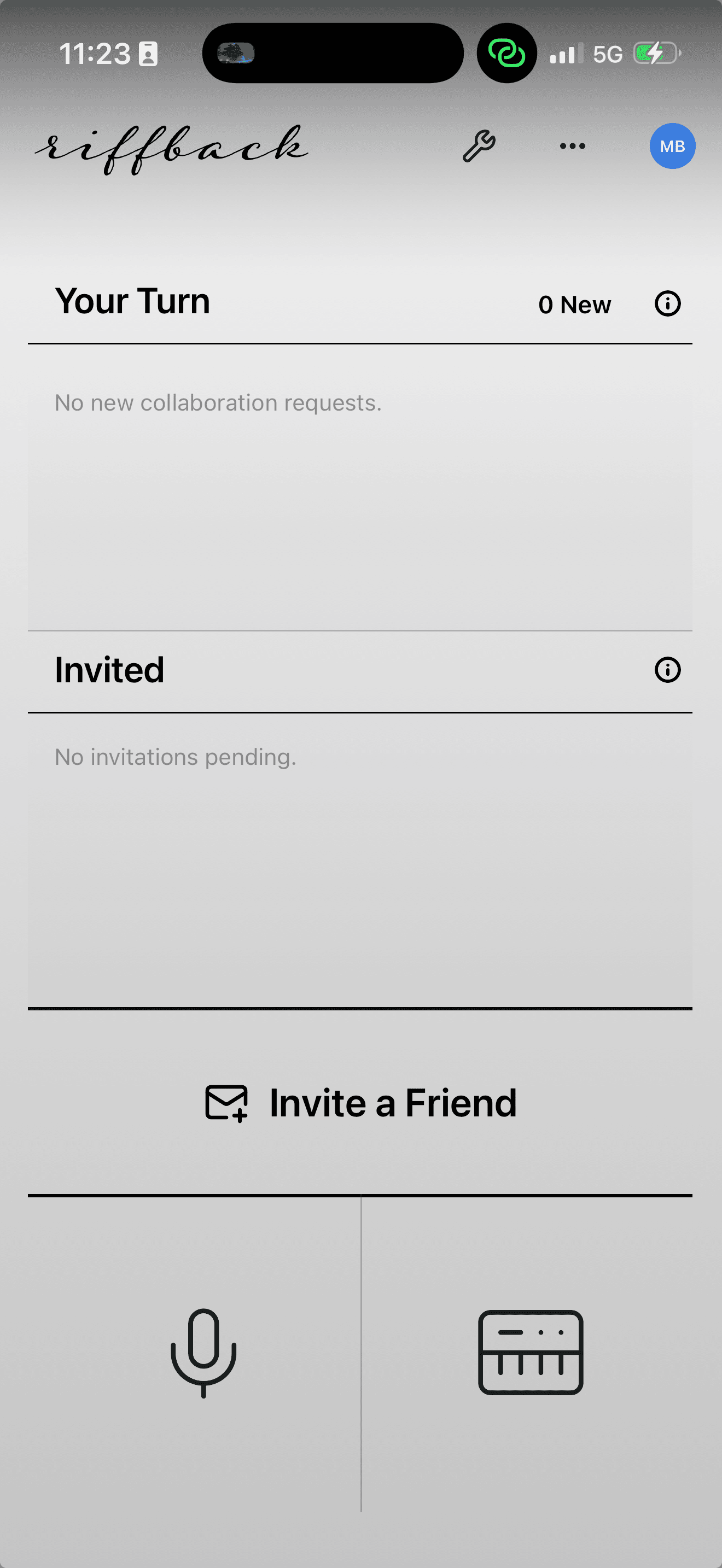
An example of the home screen after signing in. Tap or click the picture to make it larger.


If signing in does not finish
- If you closed the Apple panel, tap Continue with Apple to try again.
- If it stays on Signing in…, check your internet connection before trying again.
- If Apple cannot confirm your identity, follow the instructions shown on your phone.
Email support@mikebritton.com if you have a question or something is not working. Tell us what you were trying to do and what happened. If an error message appeared, include what it said.
Please include your iPhone model and iOS version. You can find both in your iPhone’s Settings app: tap General, then About. Never send your password or phone passcode.
You can also read Apple’s guide to signing in on iPhone.